Prerequisites
You need the correct store selected, uploaded products and a working search bar. In “Catalogue”, check product count and connection status. Prepare a short query list: exact name, product code, category, typo, wrong keyboard layout and a question about intended use. Record expected products, not just a desired results count.
The “Smart search (AI)” capabilities are shown according to the selected store's plan. If the section is missing, check “Plan and balance” rather than searching for a hidden website-code switch. Result appearance is configured separately.
Correcting Input
- Open “Catalogue → Search → Search settings”.
- Review “Typos”, “Keyboard layout” and “Transliteration”.
- Change one switch, click “Save search settings” and repeat the corresponding query pair on the storefront.
- Check both whether the product appears and whether clearly unsuitable products occupy the first positions.
| Control | Illustrative Pair | Purpose |
|---|---|---|
| Typos | герметек / герметик |
Imprecise word spelling |
| Keyboard layout | uthvtnbr / герметик |
A word typed with the wrong layout |
| Transliteration | germetik / герметик |
Character-by-character Latin and Cyrillic conversion |
| Synonyms | айфон / iphone |
Equivalent names approved by the store |
The sealant examples are intentionally Russian input tests. They do not mean a catalogue in another language is automatically translated. Brand spellings are not always character-by-character transliterations; use synonyms for those.
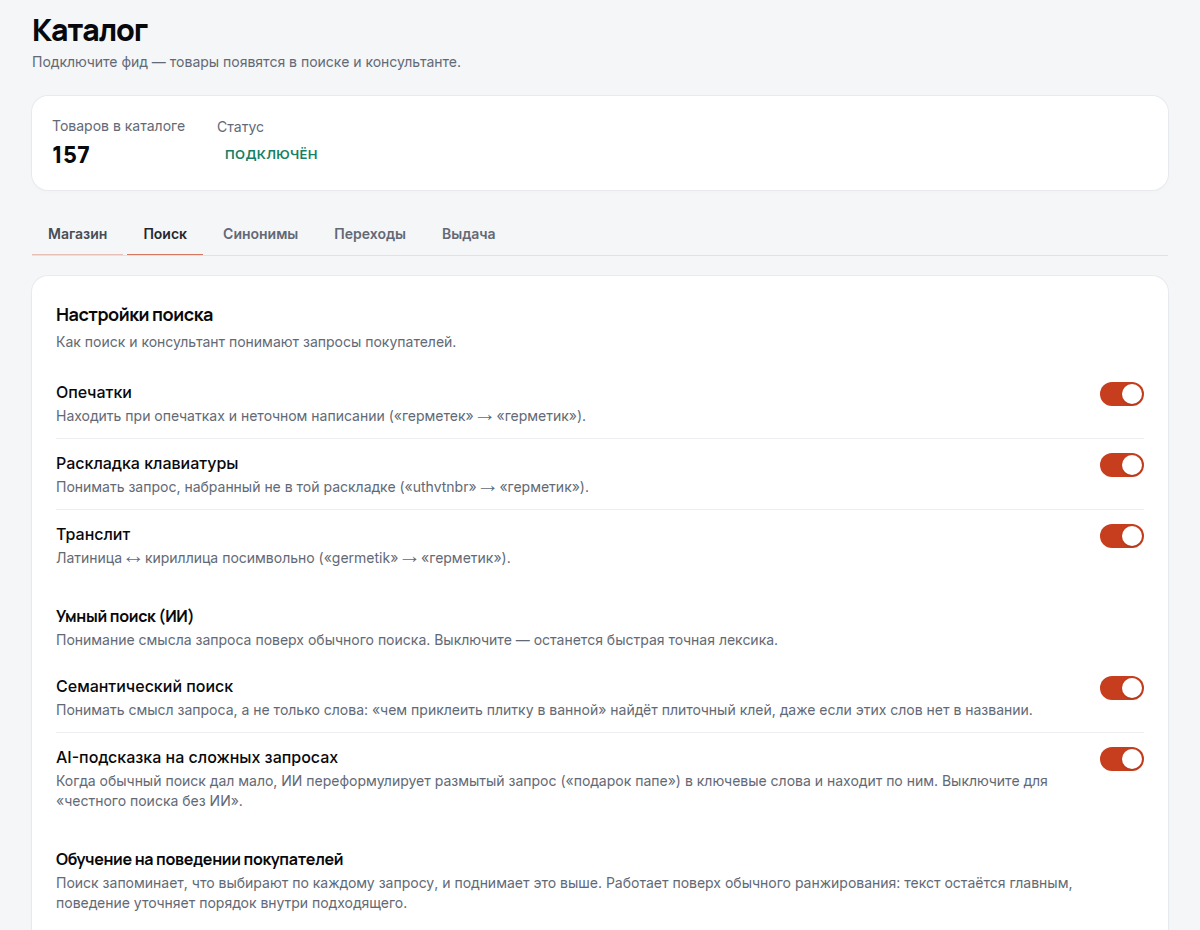
This account screen uses the original Russian interface. The illustrated store has some capabilities enabled; your set depends on the plan.
Meaning and Result Order
“Smart search (AI)” contains separate settings. “Semantic search” handles the meaning of a phrase, such as “what can I use to stick tiles in a bathroom”. “AI hint on complex queries” reformulates a vague query when ordinary search found little. “Re-ranking the top” refines the order of leading results by semantic similarity.
Do not enable everything simultaneously while diagnosing a problem. First compare “tile adhesive” with a question about its application. If needed, test “gift for dad” against suitable inventory. With the setting enabled, reranking runs only on the first page, for a query of at least two words without a code token and with at least five candidates, when the provider is enabled. A single word, a query with a recognised product code and the second page do not trigger it. Each actual call consumes a search unit; no separate monetary price is specified here. Turning reranking off does not turn off ordinary search.
Meaning-based capabilities depend on the plan, settings and model availability. They do not create missing products, prices or attributes. If a required property was not supplied, correct the catalogue source first.
Filters, Sorting and Learning
In the same tab, “Filters in results” sets displayed fields and their order. For attributes, enter actual catalogue names separated by commas, for example “Colour, Size, Material”. Use “Show values” to confirm those properties exist. An empty list can indicate either an absent property or unavailable search.
Under “Sort options”, relevance always stays first. To create a sort option, choose an available field, direction and customer-facing label. The interface limits the list to eight options; products without a value go last. Prices and dates must be correct catalogue data, not just text in a title.
“Take shoppers’ choices into account” refines the order of suitable products using accumulated behaviour. “Influence strength” adjusts its strength, and “Recalculate” refreshes the displayed learning data. Empty statistics are not automatically an error: real impressions and clicks must accumulate first. Do not promise an identical learning period for every store.
Filter Presentation and Card Labels
For each filter, configure its display, collapsed state, internal search and visible-value count. Attributes support lists, colour swatches and images; actual values load through “Show values”. Assign a colour or image to an existing value rather than inventing a property. In the card-label section, enable labels and reorder them with the arrows: customers see the first three enabled labels.
Selection by Conditions
In “Catalogue → Search → Selection by conditions”, “Enable selection for this store” requires “Data profile (JSON)”. Your catalogue administrator maps real properties to fields, units, product-type rules and value synonyms. For a source with a Russian depth field, for example:
{"fields":{"Глубина, мм":{"field":"depth_mm","unit":"mm"}},"type_rules":[{"from":"category","contains":"шкаф","type":"wardrobe","words":["шкаф"]}]}
This illustrates mapping, not a ready-made profile for every store. Save the profile, update the catalogue when rebuilding is required, and refresh data readiness. Check products with variants, field completeness and warnings about truncated SKUs. Then try “wardrobe up to 45 cm deep, without a mirror, under 40,000”. All conditions must be confirmed for one variant; an unknown mirror property does not mean “without a mirror”. Fix missing data rather than silently relaxing conditions.
Enrichment Is Not Ranking Learning
If enrichment is available, the “Enrichment (synthetic_tags)” field lets you edit search text or regenerate it. “Only empty” and regenerating all products start paid background processing; stopping preserves products already processed. Check generated text against the facts. This section can be unavailable even when other AI features exist; it is not the switch for learning from clicks.
Verification and Common Failures
Test search without filters, then with one category and a price filter. Clear filters before repeating a reference query. Price sorting deliberately changes the order, so compare relevance with relevance. On a phone, check Enter, returning to the input and opening a product card.
If an exact product is missing, check the upload, identifier, availability and hiding rules. If typos are not corrected, check saved settings, the plan and simple mode after plan expiry. Overly broad results call for checking synonym groups and source descriptions, not adding another general rule.
Continue with search rules, analytics, catalogue fields or all articles.