Before You Start
Select the correct store and confirm that it uses the current widget. Older records under “Widgets” have different capabilities. An empty preview before catalogue upload is not evidence of a styling failure; check the catalogue first.
Prepare your brand colour, a readable background and text combination, and a small logo. Allow for the store header, cookie banner and other floating buttons. The embedded preview helps with design but does not replace checking your actual website theme.
Current Widget Settings
- Open “Appearance”. In “How it opens”, select “Dropdown”, “Full screen” or “On the page”.
- In “Colours and shape”, adjust “Primary colour”, “Background”, “Text”, “Rounding”, “Theme” and “Font”.
- In “What to show on the card”, choose “Availability”, “Discount”, the “Add to cart” button and “Labels (bestseller, new)”.
- Switch “Preview” between “Desktop” and “Phone”. Check a long product name, an old price and a card without an image.
- Click “Save”. After confirmation, check the store separately: the interface says the website widget updates within a minute.
| Field | Available Setting | What to Check |
|---|---|---|
| Corner radius | Slider from 0 to 24 | Consistency with store buttons |
| Theme | Follow website, light or dark | Contrast in both themes |
| Font | Font family name | Whether the website provides that font |
| Search logo | JPG, PNG, WEBP or SVG up to 300 KB | Legibility in the open search header |
Enabling the cart button only permits its display. It does not create a cart handler for your website. If a product does not enter the actual cart, check cart integration, not the button colour.
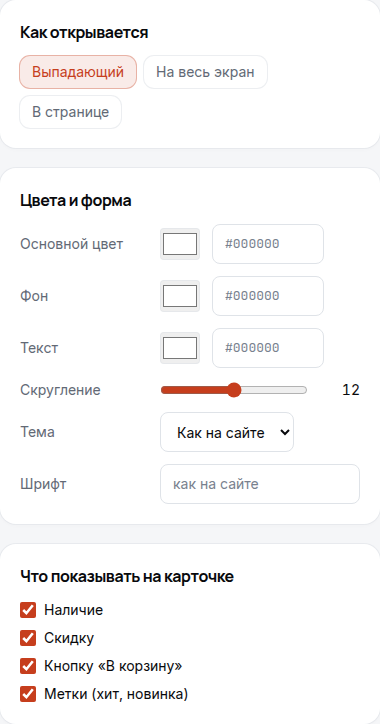
The account screen is shown in its original Russian interface. It illustrates the controls, not completed styling on your website.
Before the Customer Starts Typing
“Before the shopper starts typing” has separate desktop and phone columns. Each controls “Shopper’s recent queries”, “What is searched for most”, “Product selection” and the “Ask the consultant” button. The selection uses “Query for the selection” and “How many products”.
- Keep only useful blocks on phones so they do not push products too far down.
- When enabling the selection, set its query and product count, from 2 to 8.
- Check that query manually. For example, “headphones” only makes sense if your assortment contains them.
- If the query is empty, the interface describes the selection as highly rated products that are in stock. Do not present it as verified bestsellers.
Recent searches depend on that customer's history and tracking-consent mode. Their absence for a new visitor is expected.
Custom Labels and Styles
Expand the custom-text section, use its label search to find the relevant string, and change only what matters. An empty field retains the default text. For example, “Product code or name” explains accepted input more clearly than a promotional slogan.
Custom styles are for adjustments inside the widget. The interface prohibits @import, expression() and links to external addresses. Use website styles for the width and position of the outer container. Do not insert analytics code or font downloads into this field.
Legacy Widgets Have a Separate Form
Under “Widgets → Configure”, v1/v2 support search history, product categories, the all-results button and input appearance. Brands and label language are available for v1. In v3, appearance and lists are fixed rather than configurable here. Legacy bundle changes may take five minutes to appear.
The all-results button's website search-page address accepts a template such as https://shop.example/search?q={query}. This differs from current-widget configuration. Do not transfer legacy parameters into new code by guesswork.
Verification and Differences
An unsaved preview does not publish changes to customers. After a save error, read the message and try again; a draft is not confirmation of publication. If the store looks different, check the selected store, loader version, caching and embed attributes. Change one setting at a time and verify searching, closing results and adding to the cart after substantial changes.
Related articles: embedding, search, limits and security, all articles.