Separate Products from Policies
Open Knowledge base (/lk/knowledge) for the selected website. Upload products, prices, variants and stock through the catalogue. Keep delivery, payment, warranty, returns, instructions, services and project descriptions here. Do not copy your entire price list into text: two independent prices will soon conflict.
Before uploading, assign someone to maintain the content. Each material benefits from a title, scope, revision date and source. “City delivery, revision <date>” is more useful than several documents called “Information”. Include exceptions such as bulky products, remote areas and individual estimates. If timing requires agreement, state that instead of turning an example into a promise.
Create a Material Manually
- In New material, complete Title, for example Delivery.
- Enter the actual answer in the text field for terms, times and prices, not just the topic name.
- Add the optional Link when an original source exists.
- Select Add and find the material in the list.
- Check the active label and ask the consultant a paraphrased question.
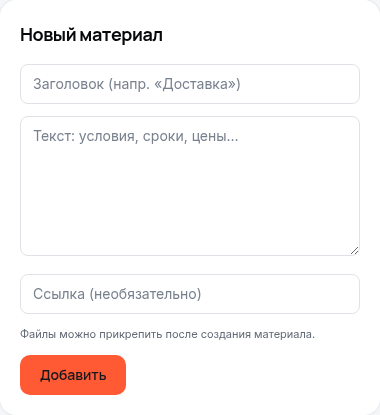
Demo: the material-creation form in the real account interface in Russian. Complete the fields and select Add first; file attachments become available after creating the material, through Edit.
| Field or element | Meaning | Example |
|---|---|---|
| Title | Topic for retrieval and maintenance | Delivery of bulky products |
| Text | Substantive answer conditions | Cost is agreed after confirming the address |
| Link | Optional original-source address | https://<shop-domain>/delivery |
| active / off | Whether the material participates in answers | Disable an obsolete revision |
| Materials: … of … | Usage against the available limit | Follow the displayed allowance |
Example text: “Delivery within the city is arranged with a manager. Bulky products are quoted separately. We need the delivery address and order contents to provide an estimate.” This explains the policy without inventing an unconfirmed amount.
Import a Page by URL
Under Add page by link, enter a public store page and select Load. Processing runs in the background: wait for the material, open Edit and read the extracted text. The loading message confirms processing has started, not that every condition was successfully extracted.
The page must contain accessible text. Authentication, protection against automated requests, navigation replacing the terms, or content appearing only after visitor interaction can prevent extraction. Do not treat a URL as a guarantee of immediate automatic updates: after changing the website's terms, check the material revision and repeat your test question.
Attach a File and Check Extraction
First create a material with a title and text. Then open Edit and use Attach file under Files for diagrams, instructions and certificates. The interface sets a 10 MB file limit. Text extraction supports PDF, DOCX, TXT and MD. An image can appear as an attachment, but this is not a promise of recognising text in scanned images.
Check two things separately: the file opens, and answers use its contents. Scans without a text layer or damaged documents may need a clear manual explanation. DOCX extraction reads paragraph text only: tables, headers and footers are excluded regardless of their complexity. Manually transfer essential terms from tables, headers and footers into the material's text field. Do not upload secrets, customers' personal data or instructions unsuitable for shoppers.
When extracted text is added, a total limit of 35,000 characters applies to the material's content, including existing text and text from previously attached files. The combined text is truncated at that limit. A file can attach successfully even if its new text is retained only partly or falls entirely beyond the limit and is not included in the material. After uploading, open Edit and locate the specific passage you need in the text field. Split a long document into separate topic-based materials so essential terms are not lost through truncation.
Extracted text is appended to the material's existing content, not substituted for it. After replacing or removing a file, inspect the text through Edit: removing an attachment does not itself clear previously extracted terms. Remove obsolete wording from the text and test the answer again.
Revisions and Troubleshooting
Search materials matches titles and text. Possible duplicate and empty labels help identify problematic records, but do not automatically select the correct revision. Disable obsolete text, Enable required materials and Delete only after checking. Bulk deletion cannot be undone.
After editing, save the material, reopen it through Edit and check the required terms in its text. Then start a new conversation with the consultant and repeat the test question. Historical messages are not updated retroactively: they do not tell you whether a new answer uses the corrected material.
| Symptom | Cause | Action |
|---|---|---|
| Material exists but is not used | Disabled or lacking meaningful text | Enable it, inspect text and question |
| Conflicting answers | Two active revisions | Disable obsolete content and remove duplicates |
| File opens but facts cannot be found | Text not extracted, excluded from DOCX or truncated by the total limit | Check the passage through Edit, transfer terms manually or split the document into materials |
| URL import is absent | Page unavailable or processing unfinished | Check the public address and refresh the list |
Next, configure the consultant and perform answer verification. Other causes are covered in troubleshooting.